
TC Tips & Tricks
We want to be able to have Traincontroller drive trains automatically some of the time. But if there are some operators present, we also want to be able to have a human drive the train with Traincontroller operating the main line points. We have an extra switchboard from which train operations are controlled. There are pushbuttons for each start & destination location; these start schedules by using the "start/dest" settings for each schedule. There's also a "human/PC" toggle switch in the middle: this is the key to choosing who drives the train.
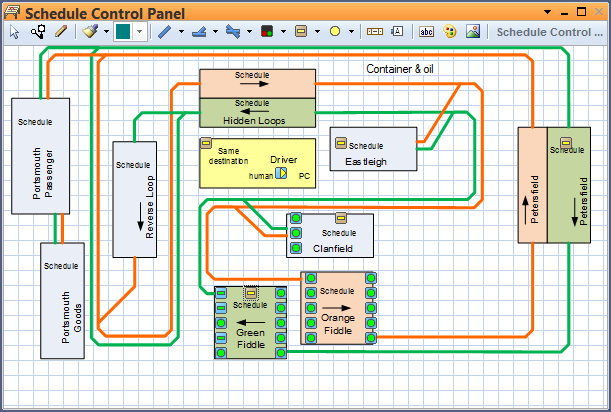
The way we've done this is to have duplicate schedules for almost all schedules: a computer driven one and a manually driven one. In the "computer" one, the driving mode is set to the computer. For manual schedules, it is set to manual driven with PC intervention if required (if you go through a red signal). Tyhat's the fourth option along - a throttle with exclamation mark.
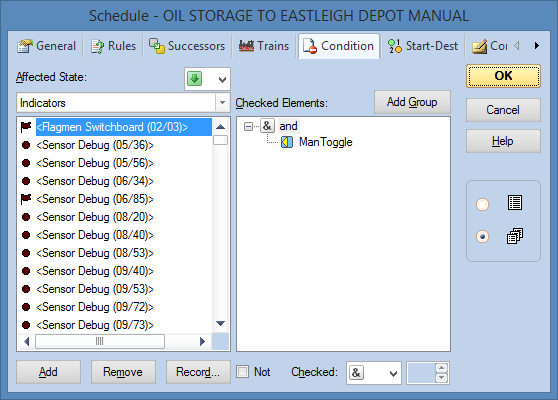
Finally each schedule has a condition: the manual/PC toggle switch being either left or right. That way, only one of the two schedules will start.
Some of the schedules have trains that should stop at stations on the journey. Other trains don't always stop there.
The way to make this happen is to set "schedule specific block/route settings".
- Go into edit mode;
- Select the list of schedules.
- Select the required schedule
- Right click on the block where the train is to stop
- choose "schedule specific block/route settings"
- set a waiting time for the station halt (this seems to be counted at fast clock speed, so may be less that you expect!)
Now trains running on that schedule will stop at the station; a goods train on a different schedule won't stop there.
The fiddle yard has five tracks in each direction. Two of those tracks are set up to hold two "half length" trains. In Traincontroller 7 silver, they were simply set to accept trains in a train group "short trains"; that meant that ONLY short trains could go there and they couldn't ever use the longer tracks.
Traincontroller 8 gold adds "train size dependent" operations. To set that up, enter the lengths of the relevant blocks: it is only the shorter ones where we've set a size. Set lengths for engines or train sets: all of our "multiple unit" trains are entered as a single engine for convenience.
Then, in all of the schedules, go to the rules. Select:
- Trains must fit in destination blocks
- Prefer shortest destination block
We've also enabled the watchdog, to detect stalled trains: set the watchdog timer to 60 seconds. Set "detect lost cars" to 3: with it set to 2, we were occasionally having erroneous detection of a missing car that wasn't actually detached.
I've upgraded the railway PC to windows 8.1, 64 bit. All of the railway doftware I use runs fine under windows 8.1. Despite the "advertised" windows 8.1 start screen, I've opted to install a utilty called "StartIsBack" that gives you a windows XP/Vista/7 style start menu. Now the PC boots to desktop and stayes there.
I've found no problem with the drivers for USB locobuffer and Digitrax PR3 (There are detailed installation instructions for the latter on the Digitrax website). We also have a mk1 Locobuffer connected to the "legacy" COM1 port and it works fine.
Traincontroller 7 runs fine; Locoanalyse runs fine.
In the fiddle yards I have two roads with two "half length" blocks for short trains. When the train at the front moves out, it is possible to add some logic to make the train at the back move down, if there is one. "Move train down" in the fiddle yard also allows for the train at the back moving down straight away if there is nothing in front of it.
The mechanism for doing this is described in the Users's manual. Here's how it's done:
- Go into "edit" mode.
- Create a schedule that will move a train from the 1st to the 2nd block.
- Add a "flagman" to a switchboard.
- Select the "trigger" tab.
- Select "checked: &" on the bottom of the form.
- Select the contact indicator for the 1st block "stop" indicator and press "add". In the right hand part of the window double click on it until it shows red (occupied).
- Select the block name for the next block and press "add". In the right hand part of the window double click on it until it shows an empty box (not reserved)
- (That has made a flagman that triggers when the "stop" indicator on the 1st block is active and the 2nd block is unoccupied).

- Select the "operations" tab.
- In the left half of the window select a schedule to move a train from the 1st to the 2nd block and press "add".

- In the right hand part of the window double click on the schedule until it shows a green downward arrow (onward journey).
That all!